When
you first bought your device, it came with a specific version of its
operating system. Maybe Android 4.4 KitKat, maybe iOS 7, both of which
released in 2013. When those OS versions came out, they were developed
with a certain set of hardware specs in mind.
Fast-forward to
today and overall hardware specs have drastically improved. Features are
added to both Android and iOS, and these improvements are made with the
newer hardware specs in mind. As such, newer versions of an OS require
more computing power and resources for a smooth experience.
In
other words: if you have a 2013-era device that came with Android 4.4
KitKat and upgraded it to Android 7.0 Nougat, you simply don’t have
enough juice to handle all of the extra overhead. Hence, the device
feels slower. What can you do about it? Not much,
unfortunately. Feel free to apply minor upgrades (e.g. from Android 7.0
to 7.1) but avoid major upgrades (e.g. from Android 7.1 to 8.0). Keep
your device in the era it came with, and upgrade the device itself if
you want to take advantage of a newer OS version.
2. App Updates
While
all types of software can succumb to something called “feature creep” —
the continued adding of new-yet-arguably-unnecessary features — mobile
apps are some of the worst offenders. Even so-called “lightweight” apps
can quickly grow bloated over time.
But the real tragedy is that
most developers aren’t mindful of the resources used by their apps. In
fact, as overall device hardware improves, developers tend to get lazier
as far as resource management goes. Over time, apps tend to eat up more
RAM and CPU but your hardware stays the same, so performance feels
slower.
Take
an app like Spotify and compare how it is now to what it was like back
in 2014. The 2014 version would run perfectly fine on today’s phones,
but today’s version of Spotify would likely sputter on a 2014-era phone.
Apply this to all apps on your device and it’s easy to see why it may
seem slower now. What can you do about it? As
apps grow bloated, you can replace them with lighter-weight
alternatives. Likely offenders include note-taking apps, media apps,
social network apps, and office apps. In some cases, an older version of
an app might be available. So long as it doesn’t have any glaring
security issues, it might suit your device better than the latest
version.
3. Background Apps
Another reason why your phone
feels slower is that you have more apps installed now than when you
first got the device. If you don’t believe me, go to your phone’s
settings and look at all of your downloaded apps. Most people think
they’ve only installed 10 or so apps, but are often surprised to see
closer to 40 or 50.
The
problem is that some apps run in the background although you aren’t
actively using them. For example, email apps are always checking for new
incoming emails, messaging apps are always awaiting new messages,
note-taking apps are always syncing, etc. Even animated live wallpapers and home screen widgets need resources to do what they do.
What can you do about it? Identify which apps are draining battery
as heavy battery use tends to indicate heavy background processing.
Switch to a static wallpaper and avoid relying on widgets. Uninstall
apps you don’t use. Disable background processing in apps that allow it.
All smartphones and
tablets run on flash memory, which is a type of solid-state storage
medium with no moving parts. The most common type of flash memory is
called NAND. While NAND is fast and affordable, it does have a few
quirks that can impact performance.
First,
NAND memory grows slower as it fills up. The exact mechanisms behind
this are beyond the scope of this article, but suffice it to say that
NAND memory needs a certain amount of “empty blocks” to operate at peak
data-writing performance. The speed loss with full storage can be
significant.
Second, NAND memory degrades with use. There are three kinds of NAND memory
— SLC, MLC, TLC — but they all have write cycle limits per memory cell.
When the limit is reached, the cells wear out and impact performance.
And since your device is always writing data, deterioration is
unavoidable.
NAND and eMMC: All You Need to Know About Flash MemoryNAND and eMMC: All You Need to Know About Flash MemoryThe world would be a
sad place without flash memory. But how much about flash memory do you
really understand? Here are the essentials you should know to make
informed buys!Read MoreNote that TLC is a type of NAND memory pioneered by
Samsung. It’s the cheapest to produce but has the worst durability:
4,000 write cycles per cell versus 10,000 in the more standard MLC type.
This might be why Samsung devices have a reputation for slowing down
more than non-Samsung devices.
What can you do about it?
We recommend staying under 75 percent of your device’s total storage
capacity. If your internal storage is 8 GB, don’t cross the 6 GB
threshold. This can also help extend the life of cells through a technique called “wear leveling,” thus delaying performance degradation.
In spite of all the above, your device might simply feel slower because you perceive it to be slower, not because it has actually slowed down.
There’s
an interesting phenomenon where search traffic for “phone slow” spikes
after new phone releases and big OS updates. Nobody knows for sure what
this means, but one interpretation is that when something new comes out,
what you have right now suddenly seems worse.
Furthermore, as the people around you upgrade their devices, and as you acquire other
devices in your household (e.g. a brand new laptop), your baseline for
good performance goes up. Your Galaxy S3 Mini may have been “amazing” at
one point, but now that your standards and expectations have risen,
it’s now “a piece of junk.”
What can you do about it? Learn to accept it or upgrade your device. Android users could flash a new, light-weight ROM.
You may not have heard of HTTP/2 yet, but it’s the most recent
update to HTTP. The new protocol standard introduces some new concepts
and makes communication between servers and applications faster and more
efficient.
What Is HTTP/2?
HyperText Transfer Protocol Version 2, or HTTP/2, is the first major update to HTTP in 15 years.
The
previous protocol standard, HTTP/1.1, has been in use since 1997 and
uses a mix of clunky workarounds to improve on the limitations of HTTP.
It
is based on SPDY (“speedy”), an open-source experiment started by
Google to address some of the issues and limitations of HTTP/1.1
The Internet Engineering Task Force (IETF) specifies the changes like this in Hypertext Transfer Protocol version 2, Draft 17:
“HTTP/2
enables a more efficient use of network resources and a reduced
perception of latency by introducing header field compression and
allowing multiple concurrent exchanges on the same connection […]
“It
also allows prioritization of requests, letting more important requests
complete more quickly, further improving performance.”
“HTTP/2 also enables more efficient processing of messages through use of binary message framing.”
“This
specification is an alternative to, but does not obsolete, the HTTP/1.1
message syntax. HTTP’s existing semantics remain unchanged.”
HTTP/2 Is Based on SPDY
By
2012, most modern browsers and many popular sites (Google, Twitter,
Facebook etc.) already supported SPDY. As the popularity of SPDY was
increasing, the HTTP Working Group (HTTP-WG) started working on updating the HTTP standard.
From this point onward, SPDY became the foundation and experimental branch for new features in HTTP/2. At the time, we examined how SPDY can improve browsing. Since then, the version 2 standard was drafted, approved and published.
What Is SPDY, And How Can It Maximize Your Browsing Experience?What Is SPDY, And How Can It Maximize Your Browsing Experience?Read MoreMany of the features from SPDY were incorporated
into of HTTP/2, and Google eventually stopped supporting this protocol
in early 2016.
Most browsers eventually stopped supporting SPDY, and as there are no alternatives, HTTP/2 is becoming the de facto standard.
While
the HTTP/2 protocol standard is not strictly backward compatible with
HTTP/1, compatibility can be achieved via translation. An HTTP/1.1 only
client won’t understand an HTTP/2 only server and vice versa, which is
why the new protocol version is HTTP/2 and not HTTP/1.2.
That
said, an important part of the work provided by HTTP-WG, is to make sure
HTTP/1 and HTTP/2 can be translated back and forth without any loss of
information.
Any new mechanisms or features introduced will also be version-independent, and backward-compatible with the existing web.
HTTP/2
isn’t really something a user can implement, but there are things we
can do to affect our browsing speed. Do you believe any of these common myths to speed up your internet speed?
HTTP/2
comes with some great updates to the HTTP standard. Some of the more
important ones are binary framing, multiplexing, stream prioritization,
flow control, and server push.
Binary Framing
HTTP Messages by mfuji09is licensed under CC-BY-SA 2.5.
Following the update to HTTP2/, the HTTP protocol
communication is split up into an exchange of binary-encoded frames.
These frames are mapped to messages that belong to a particular stream.
The streams are then multiplexed (woven together in a sense) in a single
TCP connection.
The new binary framing layer introduces some new terminology; Streams, Messages, and Frames.
Streams are bidirectional flows of bytes that carry one or more messages.
Each of these streams has a unique identifier and can carry bidirectional messages using optional priority information.
Frames are the smallest unit of communication in HTTP/2 that contain
specific sets of data (HTTP headers, message payloads etc.). The header
will at minimum identify the stream that the frame belongs to.
Messages are a complete set of frames that map to a logical request or response message.
Each message is a logical HTTP message, like a request or responses, made up of one or more frames.
This allows us to use a single TCP connection, for what in the past required multiple.
Multiplexing
HTTP/1.1
ensures that only one response can be delivered at a time per
connection. And the browser will open additional TCP connections if the
client wants to make multiple parallel requests.
HTTP/2
removes this limitation of HTTP/1.1 and enables full requests and
response multiplexing. This means that the client and server can break
down an HTTP message into independent frames, which are then
interleaved, and reassembled at the other end.
Overall, this is
the most important enhancement of HTTP/2, as it will in part eliminate
the need for multiple connections. This will in turn introduce numerous
performance benefits across all web technologies.
The reduced
number of connections means fewer Transport Layer Security (TLS)
handshakes, better session reuse, and an overall reduction in client and
server resource requirements. This makes applications faster, simpler
and cheaper to deploy.
Websites with many external assets (images or scripts) will see the largest performance gains from HTTP/2 multiplexing.
Stream Prioritization and Dependency
Further
improvements of the multiplexed streams are made with weight and stream
dependencies. HTTP/2 allows us to give each stream a weight (a value
between 1 and 256), and make it explicitly dependent on another stream.
This
dependency and weight combination leads to the creation of a
prioritization tree, which tells the server how the client would prefer
to receive responses.
The server will use the information in the
prioritization tree to control the allocation of CPU, memory, and other
resources, as well as the allocation of bandwidth to ensure the client
receives the optimal delivery of high-priority responses.
Flow Control
Issues
with flow control in HTTP/2 are similar to HTTP/1.1. However, since
HTTP/2 streams are multiplexed within a single TCP connection, the way
flow control in HTTP/1.1 works is no longer efficient.
In short,
flow control is needed to stop streams interfering with each other to
cause a blockage. This makes multiplexing possible. HTTP/2 allows for a
variety of flow-control algorithms to be used, without requiring
protocol changes.
No algorithm for flow control is specified in
HTTP/2. Instead, a set of building blocks has been provided to aid
clients and servers to apply their own flow control.
You can find the specifics of these building blocks in the “Flow Control” section of the HTTP/2 internet-draft.
Server Push
Your
browser will normally request and receive an HTML document from a
server when first visiting a page. The server then needs to wait for the
browser to parse the HTML document and send a request for the embedded
assets (CSS, JavaScript, images, etc.).
In HTTP/1.1, the server
cannot send these assets until the browser requests them, and each asset
requires a separate request (i.e multiple handshakes and connections).
Server
push will reduce latency by allowing the server to send these resources
without prompt, as it already knows that the client will require them.
So in the example above, the server will push CSS, JavaScript (a common scripting language in web pages), and images to the browser to display the page quicker.
What Is JavaScript and How Does It Work?What Is JavaScript and How Does It Work?What is Javascript?
It's a programming language used to enhance web pages. It includes
dynamically updating web pages, user interfaces and more. Let's dive
into what Javascript is all about.Read MoreBasically, server push allows a server to send multiple responses for a single client request.
Albeit
manually, this is the effect we currently get by inlining CSS or JS
into our HTML documents—we are pushing the inlined resource to the
client without waiting for the client to request it.
This is a big step away from the current HTTP standard of strict one-to-one request-response workflow.
The Limitations of HTTP/2
SPDY
had a slightly stricter policy on security and required SSL encryption
for all connections. HTTPS/2 does not require encryption but many
services will not serve HTTP/2 without SSL.
All major browsers
support HTTP/2, but none of them will support it without encryption. The
CanIUs website has a great table overview over the current browser support for HTTP/2, as seen above.
The backward compatibility and translations between HTTP/1.1 and HTTP/2 will slow down page load speed.
There
is no real reason why encryption shouldn’t be a default or mandatory
setup by now. If you already have an SSL certificate on your site, you
can improve the security of your HTTPS website by enabling HSTS.
Is HTTP/2 the Next Big Thing?
HTTP/2
was proposed as a standard in mid-2015, and most browsers added support
for it by the end of that year. HTTP/2 already affects the way that the
internet works and how applications and servers talk together.
There
are no requirements to force the use of HTTP/2, but so far it only
serves benefits and no drawbacks. It’s also a fairly minor change from a
user perspective, one that people won’t really notice.
According to W3Tech, 31.7% of the top 10 million websites currently support HTTP/2. The quickest way for most of you to enable HTTP/2 on your website is to use Cloudflare’s CDN.
The next proposed standard (HTTP/3) is already in the works and is based on QUIC,
another experimental project by Google. In October of this year, IETF’S
HTTP-WG and the QUIC Working Group officially requested QUIC to become
the new worldwide standard and to rename it HTTP/3.
It’s 2018 and if you are still using your browser to download files
from the internet, you might as well go back to the stone age. For me,
there is nothing more infuriating than having to download files using
browsers, as the whole process is clumsy and broken. First of all, you
don’t receive good download speeds, and even when you do, your download
can break anytime. That’s why you should always use a download manager. A
good download manager not only brings faster download speeds but also
allows you to pause and resume your downloads. It also allows you to run
multiple downloads in parallel and set priorities for those downloads.
So, it’s time that you switch to a download manager and to help you with
that cause, we are bringing a list of the 10 best download managers for
Windows that you can use today:
Best Download Managers for Windows
Note:
Some of the download managers in the list let you download content from
platforms like YouTube, Vimeo etc. However, downloading content from
these platforms for commercial use or piracy is illegal. So, make sure
to read the privacy policy and terms & conditions of these tools
before you start using them.
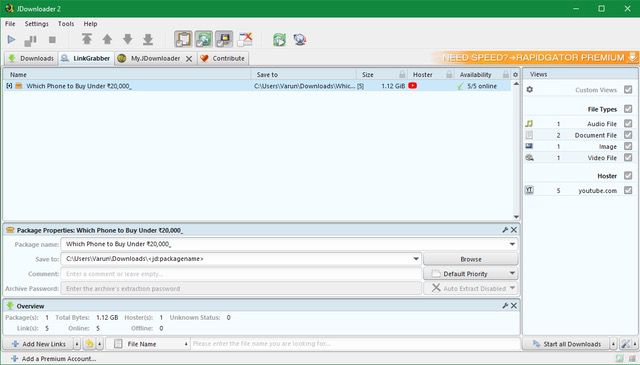
1. JDownloader
JDownloader is one of the best download managers that you can get for your Windows PC. First of all, the download manager is open source and completely free to use.
Unlike the paid download managers which provide a free version which
runs with ads, with JDownloader you get everything for free, that too
without any ads. Talking about its features, the downloader manager
allows users to start, stop or pause downloads, set bandwidth
limitations, auto-extract archives, and much more. Some of my other
favorite features of this app include multiple file downloads, support
for popular content sites such as Vimeo and YouTube, add-on support, and
more.
JDownloader is already a powerful download manager, however, it
allows you to make it even more feature-rich and powerful by using a set
of more than 300 plugins. For example, one of my favorite plugins is the scheduler plugin which allows met to shcedule my downloads.
Whenever I am downloading huge files, I schedule it to download in the
night as I get the best speeds then. With JDownloader’s scheduling
feature, I don’t have to remember to start and stop the downloads. This
is just the tip of the iceberg and you can enhance JD’s capabilities
based on your needs. As you can see, JDownloader is a very capable
download manager for Windows and you should definitely try this out. Pros:
Internet Download Manager also known as IDM is probably one of the
most popular download managers for Windows out there. The biggest
feature and probably the USP of Internet Download Manager is its easy
integration with all the major browsers out there. I still get surprised by the accuracy with which IDM intercepts all the download links allowing me to easily download the files
using its service rather than the browsers’ built-in downloader. This
deletes the extra step where I need to consciously use a download
manager as it automatically captures all my downloads. While other
download managers also do this, none of them does it as good as Internet
Download Manager.
Other features of IDM include the ability to pause and resume
downloads, support for downloading multiple files in parallel, faster
download speeds, and more. IDM comes with a smart download
logic accelerator that features intelligent dynamic file segmentation
and safe multipart downloading technology to accelerate your downloads.
This also ensures that even when your PC crashes in the middle of a
download, IDM will be able to resume the download without having to
start from scratch. Internet Download Manager also supports proxy
servers, FTP and HTTP protocols, firewalls, redirects, cookies,
authorization, audio and video content processing among other things. It
is one of the most powerful download managers out there and you should
definitely try this one out. Pros:
Great download speeds
Multiple file downloads in parallel
Support for popular video hosting websites
Supports proxy servers, FTP & HTTP protocols, and more
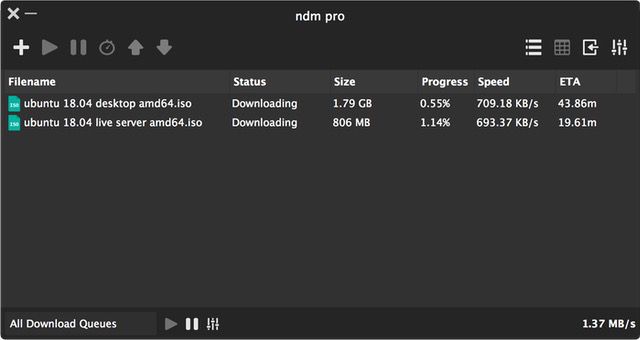
Ninja Download Manager is one of my most favorite download managers
for Windows. First of all, the app is probably the best looking download
managers out there. I mean, while rest of the download manager on this
list are functional, none of them is going to win any design award.
Since Ninja Download Manager is new in the market, the developers had
the chance to create something modern and they did exactly that. The app looks like a modern Windows 10 app and doesn’t stick out like an eyesore.
When you get past its looks, you will find that Ninja Download Manager
is one of the best and fastest download managers out there.
The software uses multiple simultaneous connections which basically divides the whole file into different chunks
and uses different server points to download different chunks, thereby
bringing your exponentially faster download speeds. Other features like
pausing and resuming downloads, scheduling downloads, multiple
downloads, queuing downloads, and more are also here. One of my favorite
features of NDM is its sequential downloads feature which ensures that
your files are downloaded from start to finish, thus, allowing you to preview your downloads even before completion.
It comes in really handy while downloading big video files, as it
allows you to check if the quality of file is good or not before you
waste time and data on downloading the entire file. I love NDM and
highly recommend this to anyone looking for a good download manager for
Windows. Pros:
Beautiful and elegant UI
Multiple file downloads in parallel
Ability to schedule downloads
Support for sequential downloads
Cons:
Parsing of media on non-popular websites is not supported
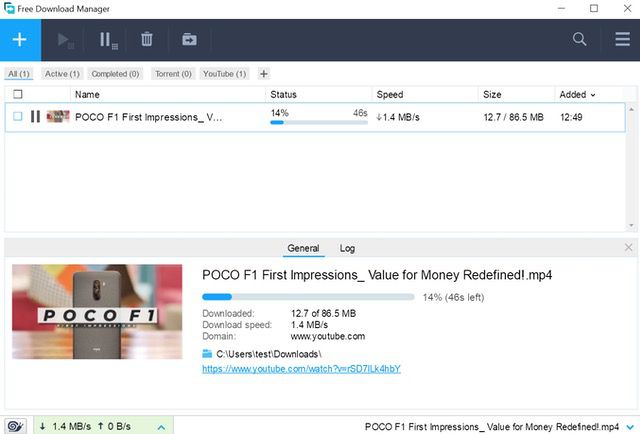
Free Download Manager or FDM is yet another open-source download
manager for Windows which is very powerful. FDM, like other download
managers on this list, brings faster download speeds by
splitting the downloading files into different parts and then
downloading those parts simultaneously. It also supports
pausing and resuming of downloads even when a download is interrupted
abruptly. One of the unique features of FDM is its support for torrent
files which comes in really handy at times. I also love its bandwidth
management features which allow me to allocate bandwidth to downloads
thereby allowing me to surf the web without any hindrance in speed. FDM
is also one of the best looking download managers on this list and I
quite like its modern and clean UI.
All that said, my favorite feature of Free Download Manager is its smart file management and scheduler system. With FDM you can easily organize downloaded files by their type.
So, all my files are organized even before they are downloaded. With
FDM, all my videos, games, and music downloads are sent to their
respective folders. I love using FDM and it’s one of my most favorite
download managers in the market. The fact that it is totally free to use
without any ads makes this even better. If you are looking for a free
and powerful download manager for Windows, definitely try it out. Pros:
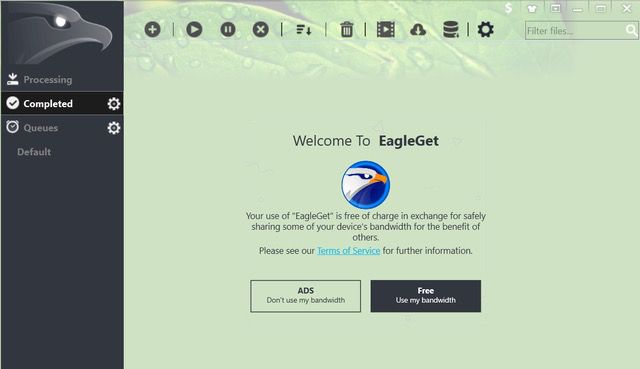
EagleGet is a free all-in-one download manager which can be
integrated to Chrome, IE, Firefox, Opera, offering support for HTTP,
HTTPS, FTP, MMS and RTSP protocol. What this means is that the software
can automatically catch download links from the above-mentioned browsers
thereby allowing you to download files without any problem. Just like
the other download managers on this list, EagleGet uses advanced multi-threaded technology to speed up connections so that you get speedier downloads.
It also supports all the other features including multiple downloads,
the ability to pause and resume downloads, adjusting the priority of
downloads, bandwidth allocations, and more. One of the best features of EagleGet is its built-in malware checker and file integrity verifier.
The feature protects users from virus attacks while at the same time
ensures that the downloaded file is genuine and original. The software
is completely free to download and use, however, you have to either
agree to see ads or share your bandwidth with other users who are using
this software. In a way, it acts similarly to a torrent where you have
to share your bandwidth for being able to download files. If you like
what you read here, download EagleGet by clicking on the link below. Pros:
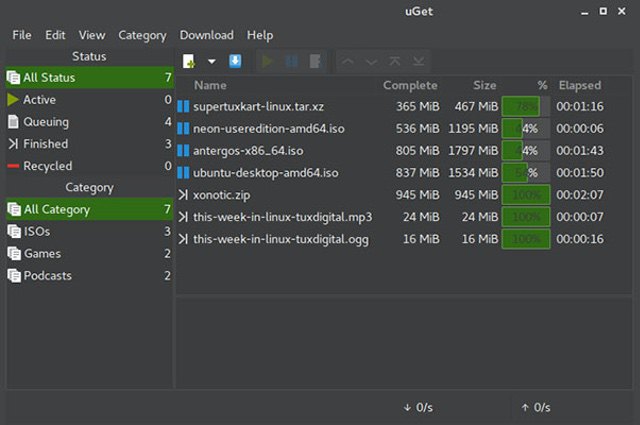
uGet is yet another open source download manager for Windows which is completely free to use. It brings features such as multi-connection
downloads which uses file splitting to increase download speeds, batch
download with file queuing, and the ability to resume and pause
downloads without having to start the downloads from the
beginning. One of my favorite things about uGet is its looks. The app
automatically adjusts its appearance based on the color scheme and icons
of the operating system it is installed on. Apart from the normal light
and dark themes, uGet also comes with various hybrid themes which
really make this app stand out from the rest.
Other features of the app include a clipboard manager which monitors
your clipboard for any copied download link and prompts you to ask if
you would like to download those files, browser integration with Chrome, Firefox, Chromium, Opera, and Vivaldi,
and support for multiple mirrors protocol among other things. I have
used uGet in the past and I quite like its user interface. The download
speeds were also great and the app works exactly as advertised. It’s a
good option for anyone looking for a free and ad-less download manager
for Windows. Pros:
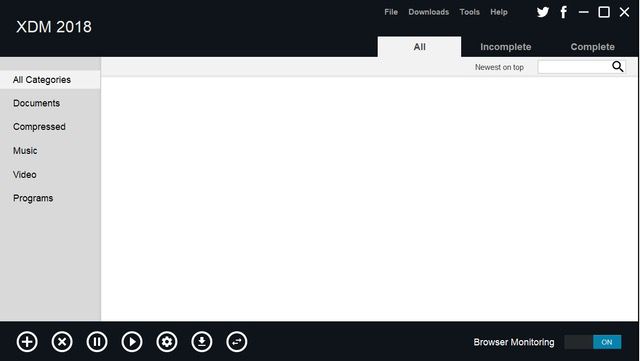
Xtreme Download Manager is one of the oldest download manager
available for Windows and it works great. The app is best for handling
downloads of video content as it supports link parsing for most of the major video platforms including YouTube, Dailymotion, Facebook, Vimeo, Google Video
and 1000+ other websites. That does not mean to say that it is only
good for downloading videos. On the contrary, just like all the other
download managers on this list, Xtreme Download Manager works with all
file types. That being said, it is best for downloading video files. One
of my favorite features of XDM is the ability to download entire
playlists from YouTube without having to input links for individual
videos.
The app also seamlessly integrates with Google Chrome, Mozilla Firefox Quantum, Opera, Vivaldi and other Chromium and Firefox based browsers.
Other features of Xtreme Download Manager include the ability to pause
and resume downloads, scheduling of download time using the built-in
smart scheduler, speed limiter which helps in managing bandwidth
allocation, support for proxy servers, authentication algorithms, and
more. As you can see XDM is a powerful download manager and it
definitely deserves a place on this list. Pros:
Support for all the popular video hosting websites
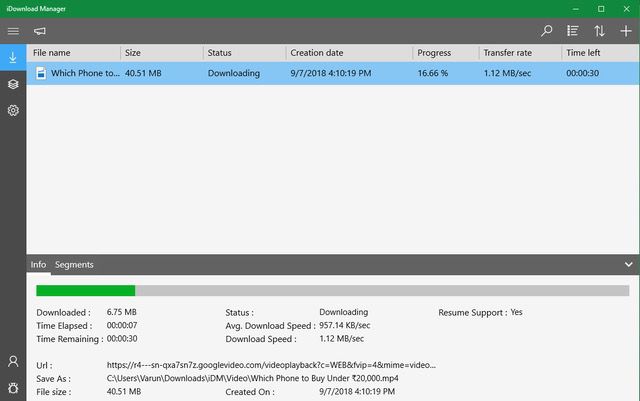
iDownload Manager is a small but powerful download manager utility
for Windows. The best thing about the iDownload Manager is that it is
available on the Windows Store which means that you don’t have to go
through set-up or anything. Just click on the install link and it will
be installed on your machine. It also means that even if you are
using the Windows S version which restricts users to use only the
Microsoft Store apps, you will be able to use this app. When it
comes to features, iDownload Manager brings all the features that we
have come to expect from a good download manager by now.
The software supports fast download speeds using file splitting,
batch download of files, prioritizing downloads, bandwidth allocations,
pausing and resuming of downloads and more. Just like Free Download
Manager, iDM also brings a file management system which allows users to
allocate different download locations to different file types. This
makes it very easy to organize your downloads. Finally, the app is
completely free to use so there is no harm in checking it out. Pros:
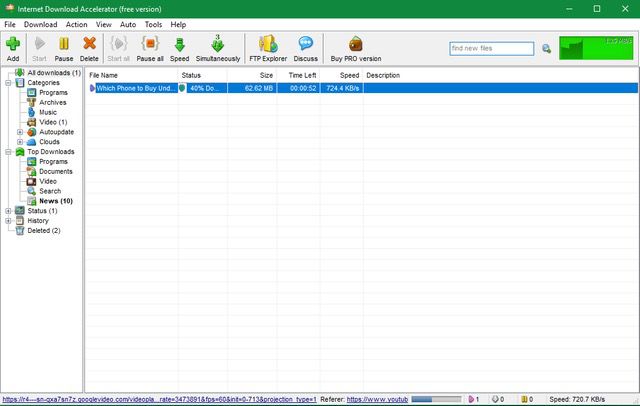
Internet Download Accelerator is a good download manager program for
Windows which aims to solve the three biggest problem people face when
downloading files using a browser; download speeds, the ability to
resume broken downloads, and the management of downloaded files. Just
like the other download managers on this list, Internet Download
Accelerator increases the download speeds by splitting a file being
downloaded into several parts and then downloading these parts at the
same time. It also resumes broken downloads from HTTP, HTTPS, and FTP servers.
The IDA also integrates with all the major browsers including Internet
Explorer, Chrome, Firefox, Mozilla, Opera, Netscape, Safari,
Yandex.Browser, Vivaldi, and others to give a seamless downloading
experience. If none of the above download managers meet your needs, you
should give this one a try. Pros:
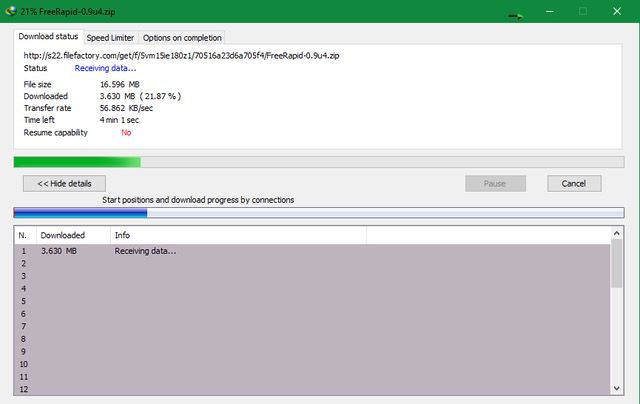
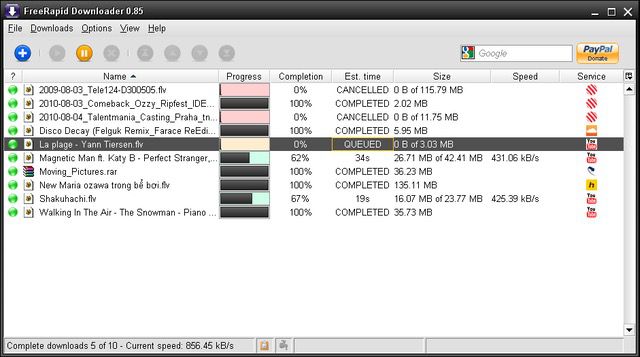
The last download manager app for Windows on our list is the Free
Rapid Downloader which is a fairly good download manager with all the
important features. It is is an easy to use Java downloader that
supports file downloads from Rapidshare, Youtube, Facebook, Picasa and
other file-sharing services, including the new ones like Mega.
The ability to download files from file sharing services such as
Rapidshare and Mega is one of the best features of this app. Other
features of the app include support for concurrent downloading from
multiple services, downloading files using a proxy list, support for
streaming videos or pictures, smart clipboard monitoring, and more. If
you download a ton of files from file-sharing websites, this is the best
download manager for you. Pros:
Support for popular video hosting and file sharing websites
Download Files Easily with These Windows Download Managers
That ends our list of the best download managers for Windows that you
can use. I have included both paid and free download managers here so
everyone can enjoy the benefits of using a download manager. Do check
out the list and let us know which is your favorite download manager
amongst them all. Also, if there is a download manager that you already
enjoy using and is not on the list, share its name in the comments
section below. Do share this article with your friends who are still
using their browsers to download files from the internet.